Construction Control — Articles
Approved Change Order Not Showing on Your Pay Application? Check the SOV
Before submitting a pay application, compare the change-order requests marked approved in your records against the pay-app Schedule of Values.
Construction Control's EX-06 flags a COR marked approved when its ID is entirely absent from the SOV records entered into the workbook. If that ID is present but the billed value differs, that is a separate EX-07 check.
The workbook does not verify approval status, connect to Procore or Autodesk, explain why a line is missing, or determine whether the amount is eligible for billing. Review the supporting documents and coordinate any correction with the responsible project team.
Every manual handoff is a place where a record can be left behind, copied twice, or carried forward at a stale amount. A manual handoff creates an opportunity for a missing reference, duplicate entry, or amount difference. An individual record may appear complete without proving that it agrees with related records. The seven-pass method below is an independent comparison of the records you assemble; it does not establish what either platform does or does not detect. The fix is a deliberate cross-check: line the three lists up side by side and compare them in both directions. This guide runs that cross-check in a plain spreadsheet, by hand, in seven passes — the same seven comparisons our workbook automates, written out so you can do the manual version free and judge for yourself whether automating it is worth anything to you.
Step 1: Get your three lists into one spreadsheet
You need three lists for the billing period:
- The ticket list — every T&M ticket, with its ID, date, scope of work, labor hours, loaded hourly rate, and the change-order request it belongs to.
- The change-order list — every COR, with its ID, its status (pending or approved), and its amount.
- The pay-app list — the schedule-of-values lines as they will be billed this period, with the value billed against each change order.
Collect current copies of the three lists from the records you are authorized to access. Where suitable exports are available, you can use them to prepare a separate comparison spreadsheet; otherwise, transcribe the necessary fields from your source records. Procore documents CSV export of subcontractor invoices from Progress Billings. Autodesk documents cost-payment-application export and reporting workflows, and one Autodesk Community user described relying on Excel reports for post-approval Finance reporting. Neither source establishes a single export containing all three lists or a documented pre-billing reconciliation procedure. Check the identifiers, columns, and amounts in every copy before comparing them. Our workbook does not import those exports — its records must be entered manually.
One boundary to be plain about: you are comparing your records. Neither this guide's method nor our workbook connects to Procore or Autodesk, imports from them, or sees anything you did not enter.
Step 2: The seven passes
Work down the list. Each pass names the workbook check that automates it, so the manual method and the tool stay easy to compare.
Before running the passes: use records from the same contract, reporting cutoff, and intended reconciliation scope. Confirm whether ticket values include labor, materials, equipment, markups, and applicable adjustments. Normalize identifiers without accidentally combining distinct records. Distinguish current-period amounts from cumulative amounts and confirm how previously billed values are represented. These preparations matter because a formula can be mathematically correct while comparing incompatible records.
Pass 1 — the same ticket twice
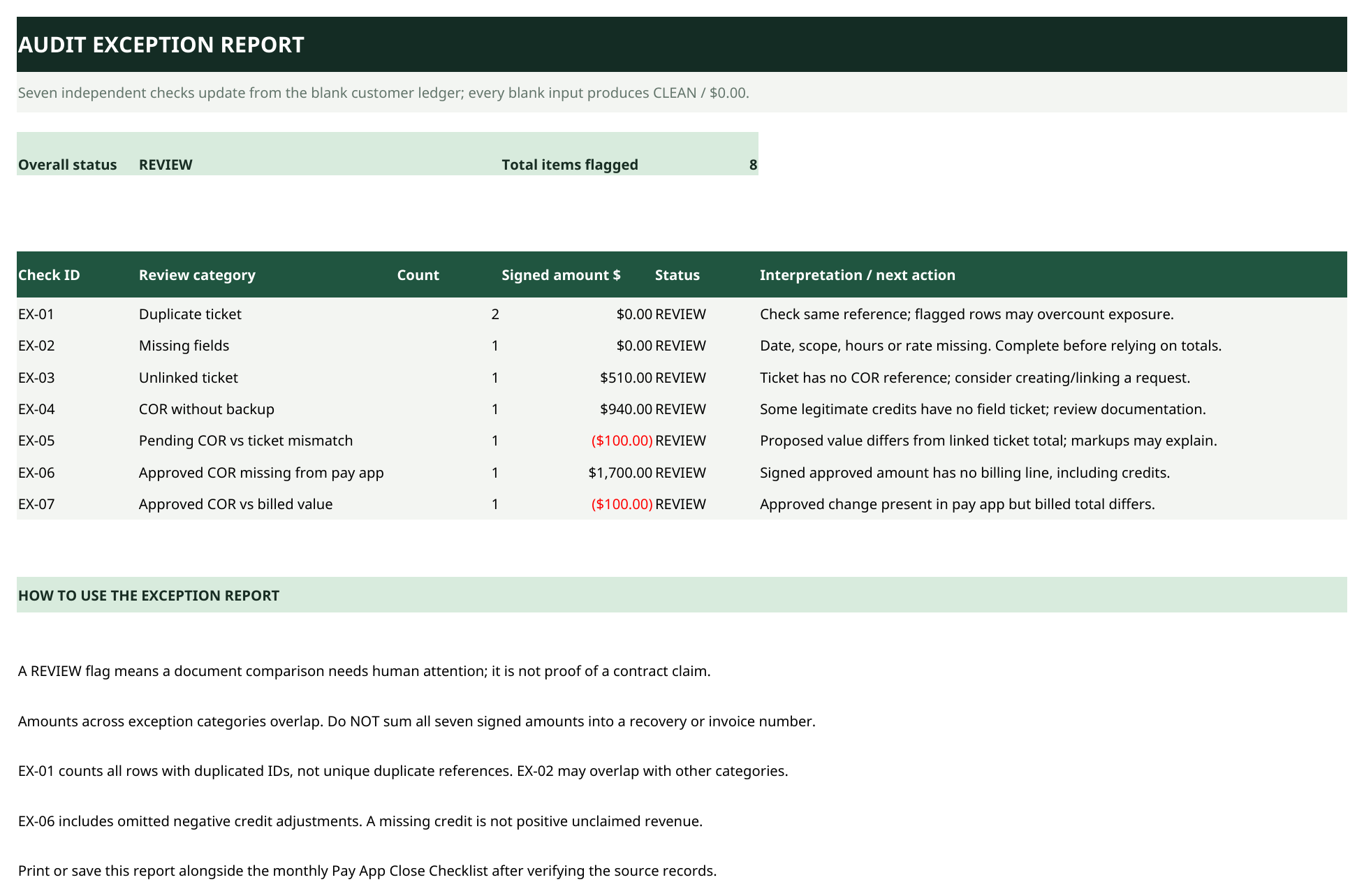
First confirm that each row represents one ticket, not one labor, material, or equipment line within a ticket. If an export contains multiple detail rows per ticket, consolidate them before running ticket-level checks. Sort by ticket ID, then use COUNTIF to identify repeated IDs. Investigate each repeat against the source records before deciding whether it represents a duplicated ticket, legitimate detail rows, or an identifier problem. Workbook check: Duplicate ticket.
Pass 2 — tickets with holes in them
Filter each required column for blanks: date, scope of work, labor hours, loaded hourly rate. A ticket missing any of them is incomplete backup, and it is far cheaper to complete it now than to explain it to a reviewer. Workbook check: Missing fields.
Pass 3 — tickets that point at nothing
Filter the ticket list for blank COR references, then compare nonblank COR IDs with the change-order list. Flag tickets with no reference or a reference that cannot be matched. Check whether the work is awaiting a COR, was linked under another identifier, or has an approved alternative disposition. This comparison identifies missing or unmatched references in your entered records; it does not establish whether the work is contractually billable. Workbook check: Unlinked ticket.
Pass 4 — change orders with nothing behind them
Compare change orders against the tickets linked to each COR. Sum the entered ticket totals by COR ID. A COR with $0 in linked ticket totals is a flag to inspect: the tickets may be missing, their values may not have been entered, or the COR may be supported by another form of documentation. This check does not prove that the COR lacks all backup or is invalid. Workbook check: COR without backup.
Pass 5 — pending change orders whose tickets disagree
For each pending COR, compare its recorded amount with the sum of its linked, entered ticket totals. Investigate any difference before submitting or updating the billing package. A difference may reflect missing ticket entries, estimated work, different pricing bases, or a genuine record mismatch. Document the explanation and revise source records only when a correction is warranted. Workbook check: Pending COR vs ticket mismatch.
Pass 6 — approved change orders that never reached the pay application
Identify approved CORs that are eligible for inclusion in the billing period being reviewed. Compare their IDs with the COR references represented in the pay-app list. Use COUNTIF to identify approved COR IDs with no matching reference, then inspect the actual application and supporting records. A missing match may reflect an omitted billing item, an intentional deferral, a previously billed amount, or a different SOV reference. Resolve the finding before deciding whether the pay application needs revision. Workbook check: Approved COR missing from pay app.
Pass 7 — approved change orders billed at the wrong value
For each approved COR represented on the application, compare the approved value with the corresponding value recorded in your reconciliation records. Establish whether the value being compared is cumulative, current-period, or an amount allocated to an SOV line; those figures are not interchangeable. Investigate discrepancies before concluding that a line is incorrectly billed. In the workbook, this comparison is specific: for each approved COR it totals the billed-to-date figure from the pay-app sheet — prior completed plus this period plus stored materials — and compares it with the approved amount, so it is a cumulative comparison, not a current-period one. It does not independently validate the complete G702/G703 calculation. Workbook check: Approved COR vs billed value.
One comparison no pass above makes: whether a still-pending COR has been billed on the pay application. Read the status of every billed change-order line yourself. Our workbook does not catch that case either — all seven of its checks miss it — so it stays a manual check either way.
Example Excel formulas for the manual comparison
Assume you have prepared three tables with one ticket per row and consistent COR identifiers. These examples are for a separate comparison spreadsheet; they are not formulas copied from the Construction Control workbook. Tickets table: TicketID, COR_ID, TicketTotal. CORs table: COR_ID, Status, CORAmount. PayApp table: COR_ID, BilledValue.
Repeated ticket IDs:=COUNTIF(Tickets[TicketID],[@TicketID])>1
A ticket whose COR reference is missing from the COR list:=IF([@COR_ID]="",TRUE,COUNTIF(CORs[COR_ID],[@COR_ID])=0)
Sum of entered ticket totals linked to a COR, in the CORs table:=SUMIF(Tickets[COR_ID],[@COR_ID],Tickets[TicketTotal])
An approved COR with no matching pay-app reference, in the CORs table:=AND([@Status]="Approved",COUNTIF(PayApp[COR_ID],[@COR_ID])=0)
These formulas identify candidates for review. They depend on normalized identifiers, complete entered records, and the assumed table structure. They do not establish billing eligibility, contractual entitlement, or whether a partial billing amount is correct. If pay-app lines do not carry matching COR identifiers, create and verify an explicit mapping before using the formulas.
A worked example
Illustrative example — synthetic records, not a customer case. A period's lists contain tickets T-201 ($1,150) and T-202 ($860), both linked to COR-031; ticket T-203 ($2,480) linked to COR-032, entered twice; and ticket T-204 with no COR named. The change-order list shows COR-031 approved at $2,010, COR-032 approved at $2,480, and COR-033 pending at $1,900 with tickets totaling $1,640. The pay application bills COR-031 at $2,010 and does not mention COR-032.
The comparison produces four findings requiring review: T-203 appears twice in the ticket-level records (Pass 1); T-204 has no COR reference (Pass 3); pending COR-033 has an entered amount of $1,900 compared with $1,640 in linked ticket totals, a $260 difference (Pass 5); and approved COR-032, recorded at $2,480, has no matching entry in this period's pay-app list (Pass 6). Passes 2, 4, and 7 produce no additional findings in this synthetic example, assuming all unspecified records and required fields are complete. The results identify discrepancies in the supplied records, not confirmed billing errors or contractual entitlements. Investigate each finding before changing a source record or pay application.
The duplicated T-203 record would make the raw linked ticket total for COR-032 appear to be $4,960 instead of $2,480. Because COR-032 is approved rather than pending, Pass 5 does not identify that amount difference. The duplicate-ID finding is therefore important on its own. Correcting or explaining one finding does not mean all related values have been independently validated.
Platform notes that change how you check
Procore. Procore documents a setting that affects visibility of summarized T&M ticket information inside change events, so check the underlying ticket records rather than relying exclusively on a summary. Procore also states that editing an existing T&M ticket does not trigger another "T&M Ticket Created" email notification. That does not establish the absence of other notifications or audit information. For a current-period reconciliation, confirm that the ticket values you use reflect the latest relevant edits.
Autodesk Construction Cloud. Per Autodesk's documentation, adding change orders to a cost payment application is its own operation after the application exists — an approved change order that nobody added is exactly what Pass 6 hunts. And because an SOV amount update does not sync into an existing payment application, run the cross-check against the application as it currently stands, and re-run it after any schedule-of-values change.
Either platform. The platforms keep the records; the agreement between the records is yours to verify. That is the whole premise of the seven passes, and it holds whether your lists come from Procore, Autodesk, another system, or your own ticket log.
Where the workbook fits — and where it doesn't
The manual passes above are the whole method; they cost nothing but the time they take. The Construction Control Subcontractor Pay App Bridge is a $39 Excel workbook — a worksheet for use alongside your AIA G702/G703 — that runs the same seven checks over records you enter into it and lists what it finds on one Exception Report: Duplicate ticket, Missing fields, Unlinked ticket, COR without backup, Pending COR vs ticket mismatch, Approved COR missing from pay app, and Approved COR vs billed value.
Its boundaries, plainly: it does not integrate with Procore or Autodesk and imports nothing from them — tickets, change orders, and pay-app values are entered by hand, and the prior-period completed column (Column D) is typed manually. It runs locally in desktop Excel. It evaluates only the records entered into it: work that was never documented, or a ticket that was never entered, is invisible to every check. It does not check a pending COR that has been billed, does not approve change orders, and does not check your G702/G703 totals. You review every flag yourself and decide what it means; a flag is a prompt to look, not a verdict.
If you want the pre-billing pass in printable form, our Pay App Pre-Submission Checklist is a free one-page PDF covering the ticket and change-order items above — also free on Payhip.
Sources
- Procore Support — Create a Change Event from a T&M Ticket (manual promotion steps; change orders as a subsequent step).
- Procore Support — Configure Settings: Change Events (summarized ticket visibility setting).
- Procore Support — Export a Subcontractor Invoice from the Progress Billings Tool (CSV export).
- Autodesk Help — Cost Payment Application (activated billing period, locked schedule of values, adding change orders as a separate operation; SOV updates do not sync into an existing application).
- Autodesk Community — Cost Payment Application and budget Payment application exporting the excel report (March 26, 2025; a user's reliance on Excel exports of approved payment applications for Finance reporting).
Platform documentation accessed October 24, 2026. Procore and Autodesk are referenced to describe documented workflows only; Construction Control is not affiliated with, endorsed by, or integrated with either company.
Related
- Will This Extra Work Get Paid? — the T&M and change-order backup checklist behind these passes.
- Why Doesn't My Pay Application Match My Change Orders? — the three divergences between an application and its change orders.
- Pay App Pre-Submission Checklist — the free one-page PDF of the pre-billing checks.
- T&M Ticket Log Template (free Excel download) — a blank ticket log with the fields the passes check: date, scope of work, labor hours, and loaded hourly rate.
- Construction Control Subcontractor Pay App Bridge — the $39 Excel workbook that automates the seven passes above.